
Shuifit virtual try-on guide
How to try on clothes with your own photo
Add a photo of yourself and choose one or two clothing references. Shuifit creates an AI image so you can see how the look might come together on you.
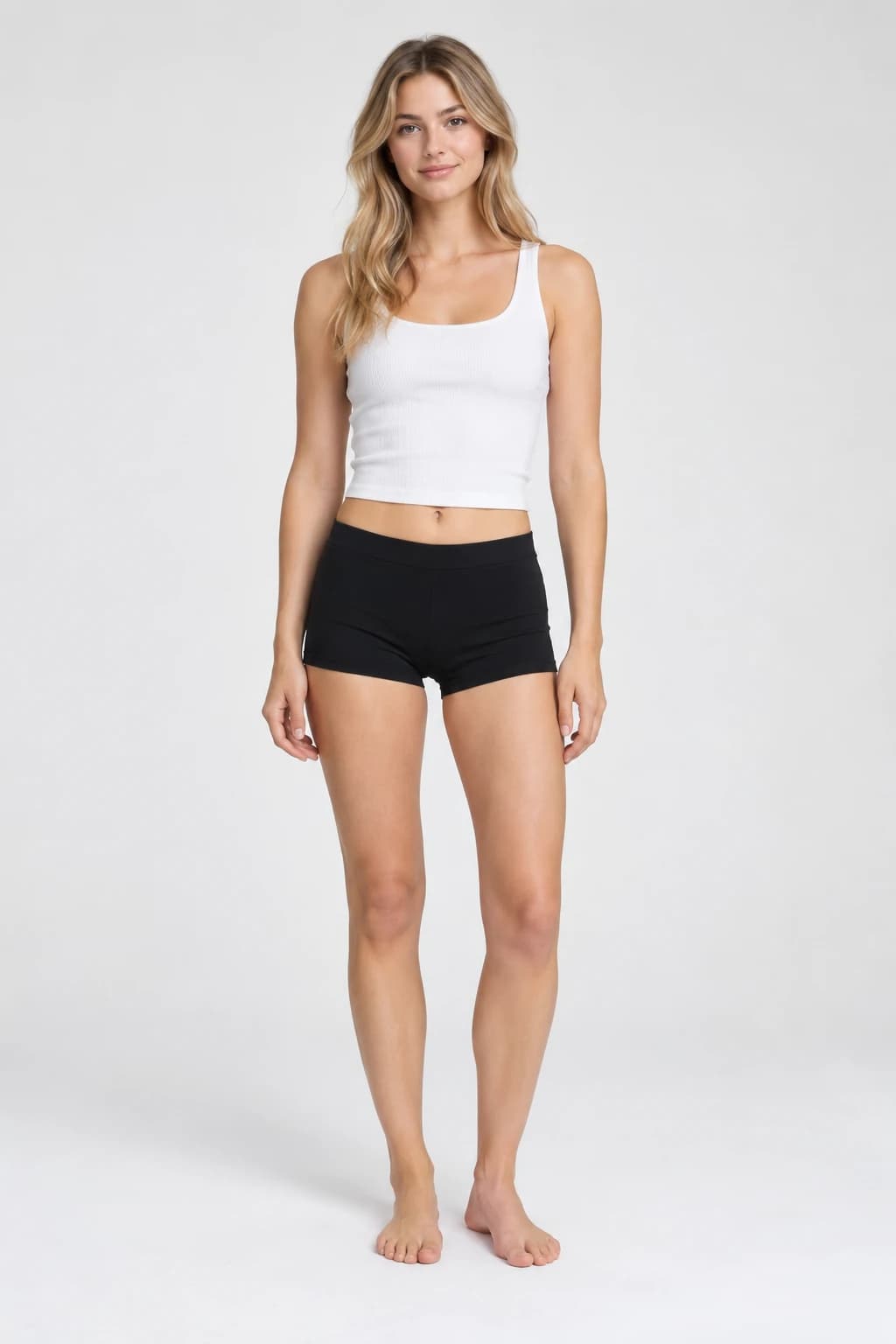
Try a look in three steps
- Choose your clothes. Browse Everyday or Special picks in Discover, or open Try-on to upload your own clothing photos. For a two-piece look, start with one top and one bottom.
- Add your photo. Sign in or create a free account, then upload a clear photo of yourself. A front-facing shot with even lighting works well. Include the part of your body the clothes will cover and keep it clear of objects, bags, or folded arms.
- Generate and review. Check your references and start the try-on. You can leave while it runs and find the finished preview in Try-on History.
Get more out of your preview
Use well-lit clothing photos that show the whole item. If you are comparing two looks, reuse the same person photo and change one garment at a time. That makes changes in color and styling easier to compare.
See two work outfits built around the same blouse.
Treat the preview as a styling reference. The AI may change garment details, proportions, or the background. For sizing and fit, compare your measurements with the brand’s size chart and check its fabric and fit notes.
Use a photo of yourself or one the person shown has explicitly allowed you to use. Choose clothing images you have permission to use. See Shuifit’s Terms and Privacy Policy.
How do Try-on Credits work?
New eligible accounts get 3 one-time Try-on Credits.
A successful try-on uses 1 Credit. A failed try-on uses 0. See Plans & Credits for the current allowances.
Connect Shuifit to your AI assistant
In your MCP client, add a remote server, select Streamable HTTP, and paste this server URL.
https://www.shuifit.com/api/mcpSign in with your Shuifit GLOBAL account and approve access when prompted. OAuth works with clients registered with Shuifit. Ask about client compatibility.